Build a branded game popup, collect contact details with separate marketing choices, and connect eligible contacts to the email tools you already use. This guide follows the current HKT Spin Wheel interface in Shopify.
Explore the demo store · Read the FAQ
1. Create your game #
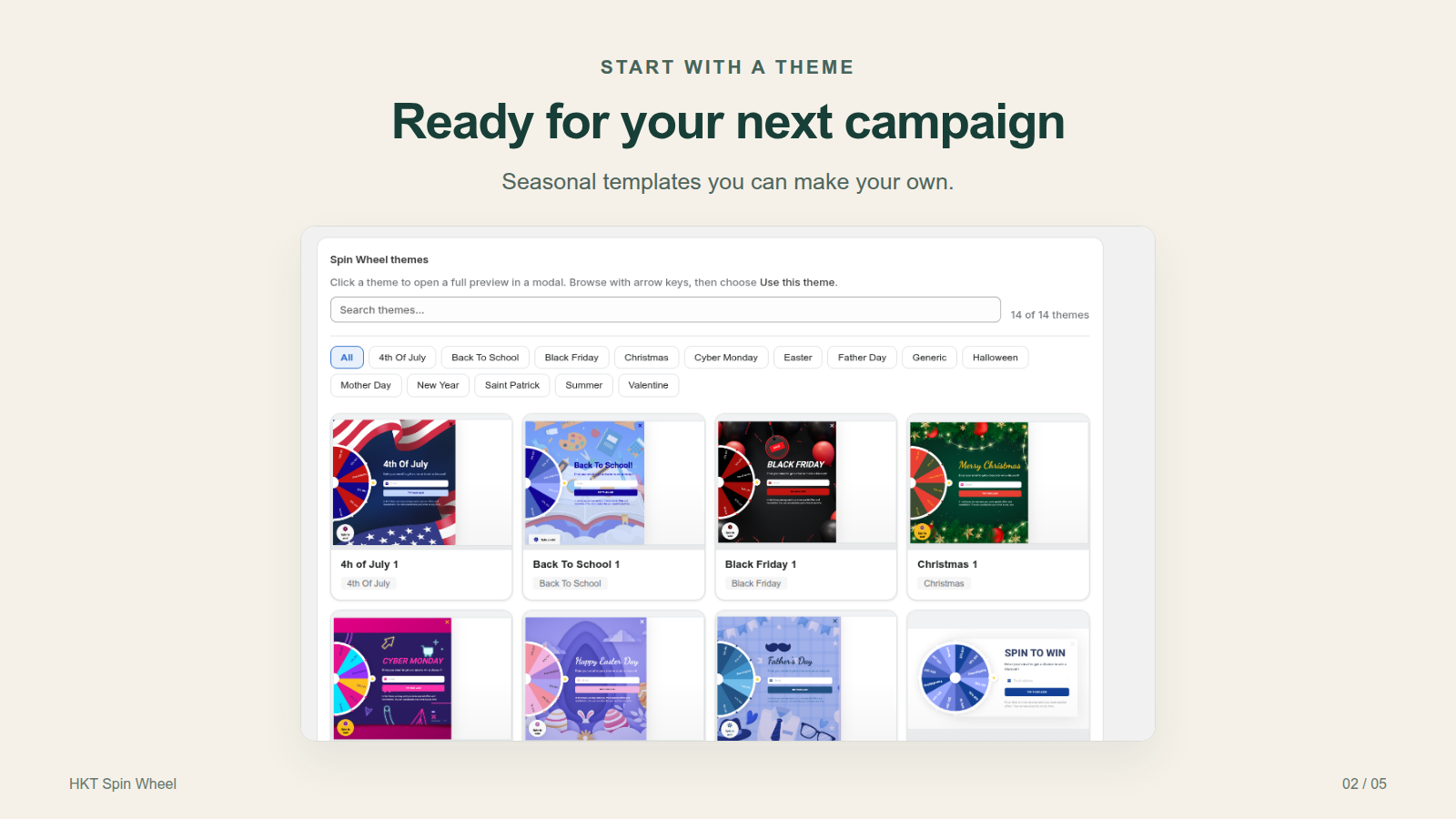
Open HKT Spin Wheel in Shopify, go to Games, and select New game. Choose a game type, browse the themes, and give your campaign a name. A new game starts as a draft.
2. Make the design yours #
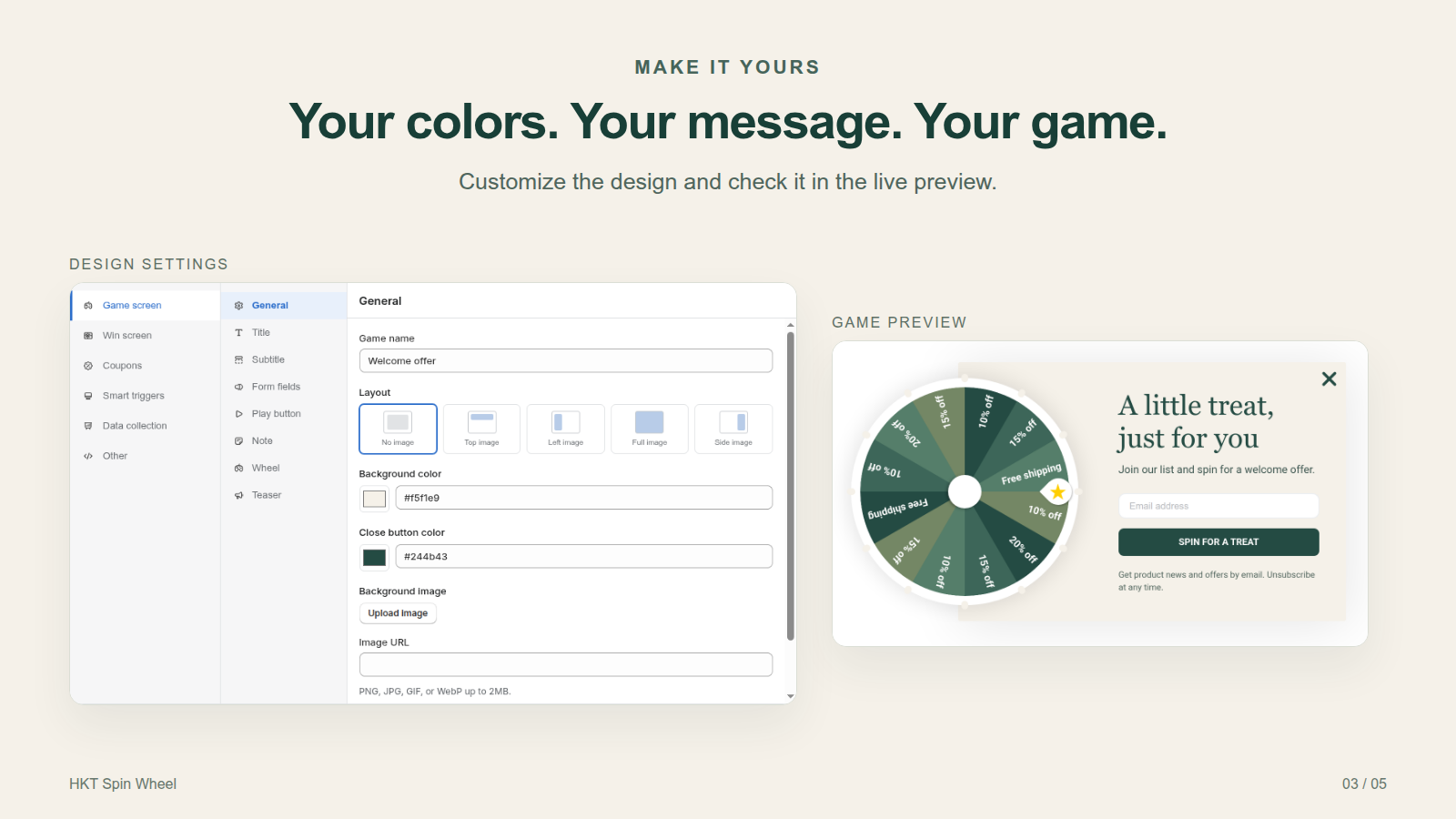
Use Game screen to change the title, form, button, colors and game teaser. Check Win screen for the message visitors see after winning. Use the desktop and mobile preview controls to check both layouts.
3. Set up your rewards #
Open Coupons. Configure the prize labels, winning weights and coupon settings for your campaign. Make sure the discount codes exist in Shopify or configure automatic coupon creation where offered. Check eligibility, expiry, usage restrictions and any minimum purchase before going live. A label such as “10% off” is only the displayed prize name; it does not by itself create a valid discount.
4. Choose when the game appears #
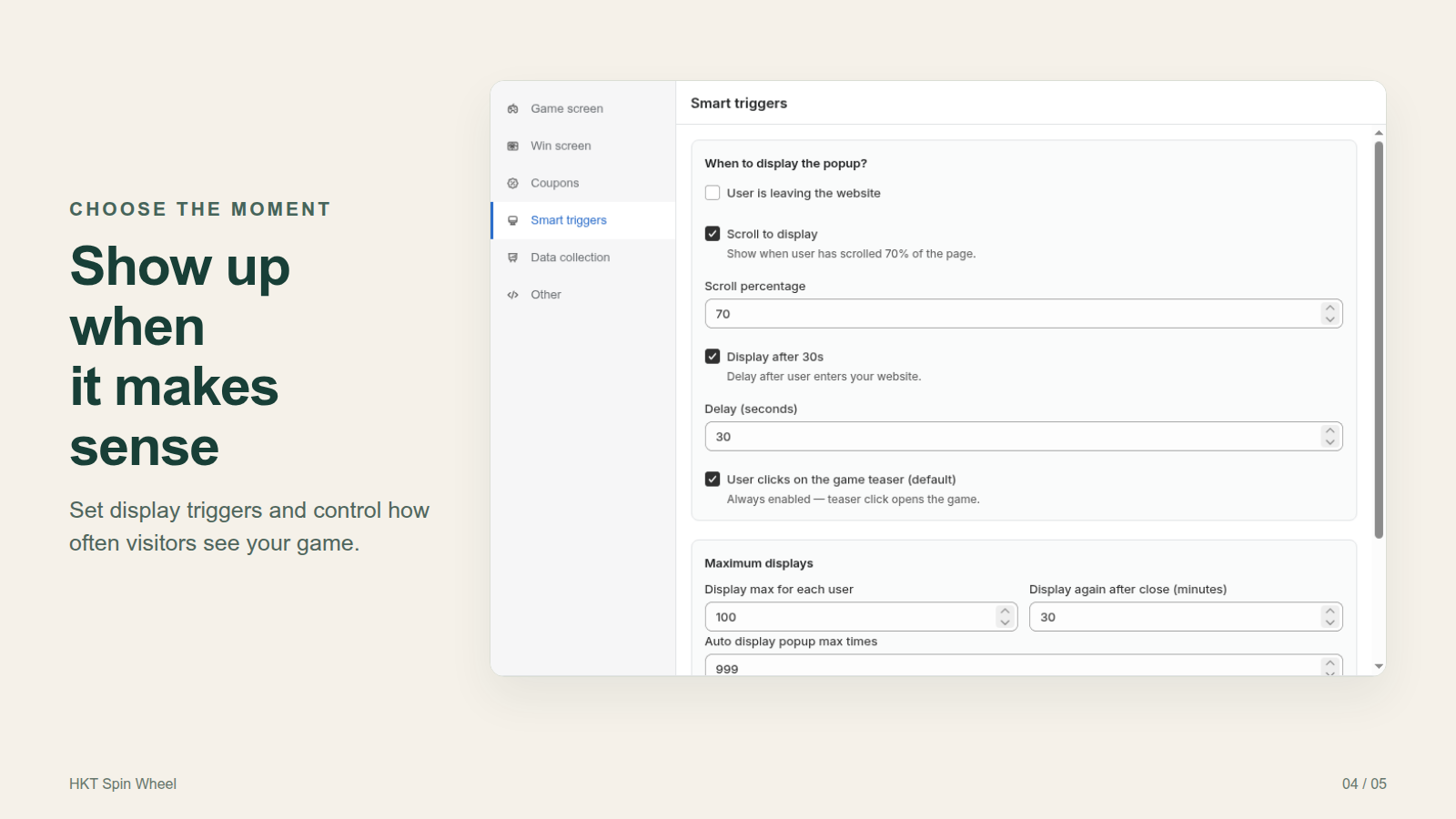
Use Smart triggers to set timing, scroll or exit triggers, display frequency and visitor targeting. Configure the pages and devices for the campaign. Keep the teaser visible so visitors can reopen the game.
5. Connect subscriber collection #
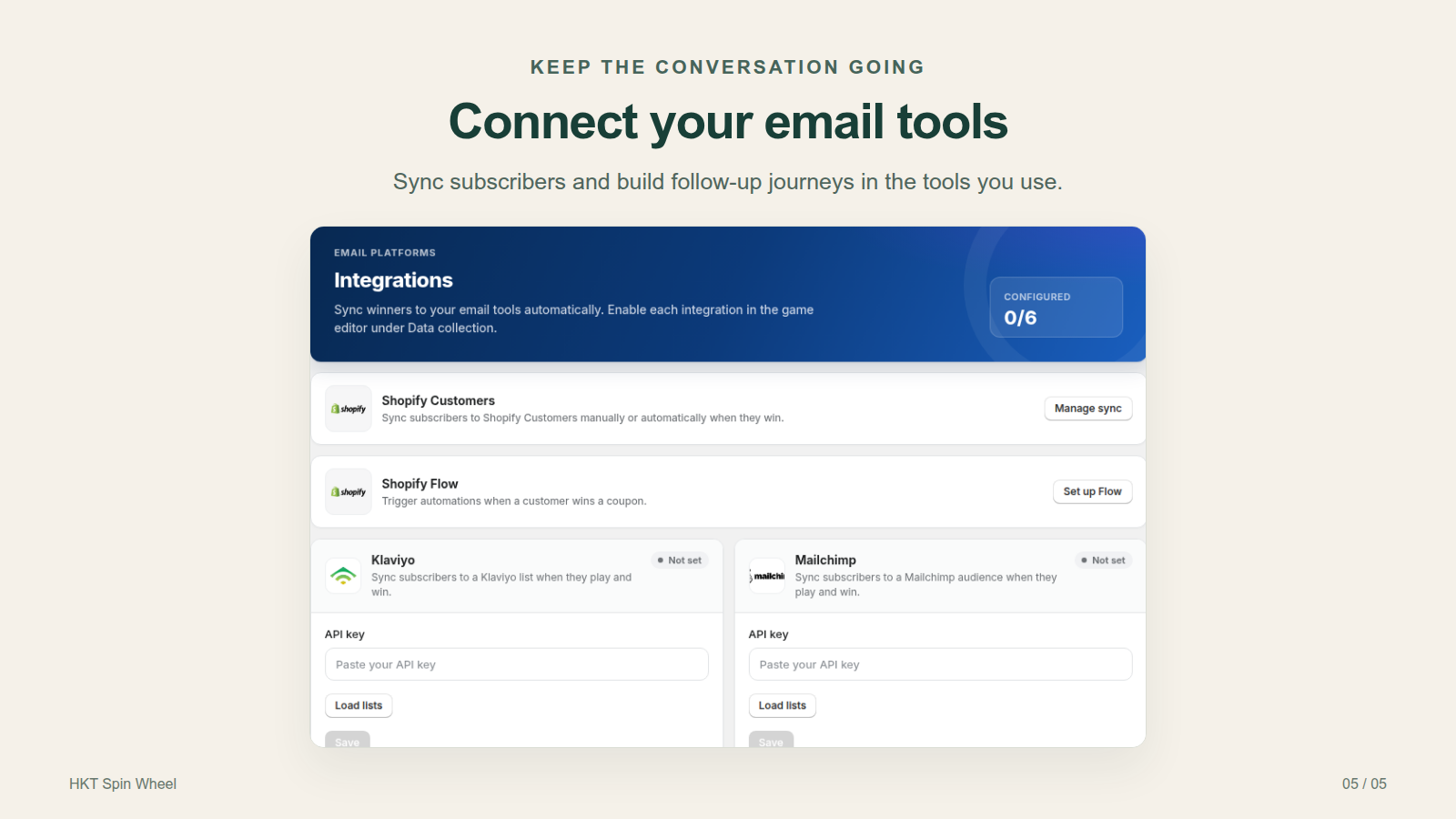
Open Integrations and connect your supported email platform. Then return to the game editor and enable that destination under Data collection. Connecting an account and enabling it for a game are separate steps. Check that your form and follow-up messages match the consent visitors have given.
6. Save, review and publish #
Save draft stores your edits without changing the game shoppers currently see. Select Review & publish, review the changes, and choose how the game should be available. Publishing applies the reviewed version. If validation flags a missing setting, fix it before publishing.
You can also ask HKT Apps AI for help with campaign copy and settings. Review suggested changes and publish them yourself when ready.
7. Enable the storefront and verify #
In the Shopify theme editor for your published theme, open App embeds, enable HKT Spin Wheel and save the theme. Open your storefront and check the game on desktop and a phone. Confirm the trigger, form, winning message and coupon behavior. If the popup has already been dismissed, account for its display frequency rules or use a fresh browser session.
Check the app’s subscriber and campaign reports after your test. For a connected email platform, confirm that the contact reaches the selected list and inspect any sync error before running a larger campaign.
Marketing permission #
In Game screen → Form fields, review the email and SMS permission choices and their wording. They start unchecked, are separate from any additional terms checkbox, and are optional for playing. SMS permission appears only when you collect phone numbers. Translate or adapt the wording to your store before publishing.
Marketing-list integrations require a recorded email opt-in. Omnisend can receive a new contact as nonSubscribed without one and preserves existing subscription choices. Its connection syncs email only and needs an API key with Contacts read and write access. Creating a new Shopify customer only enables marketing for the channel the shopper explicitly chose.
Test both an unchecked submission and an opted-in submission. Check the destination platform’s channel status as well as the contact details. Historical entries without consent evidence are not automatically subscribed.
Quick editor walkthrough #
This short recording shows the design settings, triggers, data collection and preview. It uses a draft demonstration campaign.
Need help? #
Start with the FAQ or contact support@hktapps.com. Include your shop domain and the campaign name so we can locate the right setup. Do not send passwords or API keys.
Updated October 2026.


