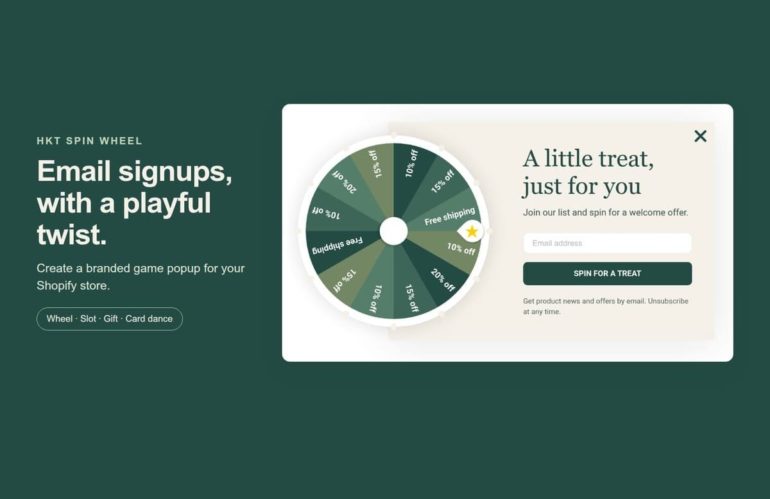
A spin-to-win popup turns a plain “join our newsletter” box into a quick game. A visitor enters their email, spins a wheel and wins an offer they can use right away. It works best for stores that already get steady traffic and want more subscribers and more first orders from that traffic.
This guide walks through the full setup in HKT Spin Wheel, our Shopify app, from choosing a design to testing the live popup on your store. The free plan includes 2,000 popups a month, so you can follow along without paying anything.
The short version:
- Install HKT Spin Wheel.
- Create a game and pick a theme.
- Set up prizes that are real discounts you can afford.
- Match the design to your brand and check it on mobile.
- Choose when and where the popup appears.
- Collect emails with clear marketing permission.
- Publish the game and turn on the app embed.
- Measure the results and improve one thing at a time.
Before you start
- Pick one goal. Most stores use a spin wheel to grow their email list and convert first-time visitors. Knowing your goal makes the prize and timing decisions easier.
- Decide what you can give away. Look at your margins and choose a range of offers you are comfortable with, such as free shipping, 10% off or a free gift above a minimum order.
- Have your theme ready. The popup is added through a Shopify app embed. You switch it on in the theme editor; no code changes are needed.
- Optional: your email platform. HKT Spin Wheel connects to Klaviyo, Mailchimp, Omnisend, GetResponse and ActiveCampaign, so new subscribers can go straight into your existing lists.
Step 1: Install HKT Spin Wheel
Open the HKT Spin Wheel listing on the Shopify App Store and install it on your store. The app opens inside your Shopify admin. You can see a finished example on our demo store before you build your own.
Step 2: Create a game and pick a theme
Go to Games and select New game. Choose a game type:
- Wheel: the classic spin to win.
- Slot: a slot machine that lands on a prize.
- Gift: visitors pick a gift box to reveal their prize.
- Card dance: shuffled cards with a prize behind them.
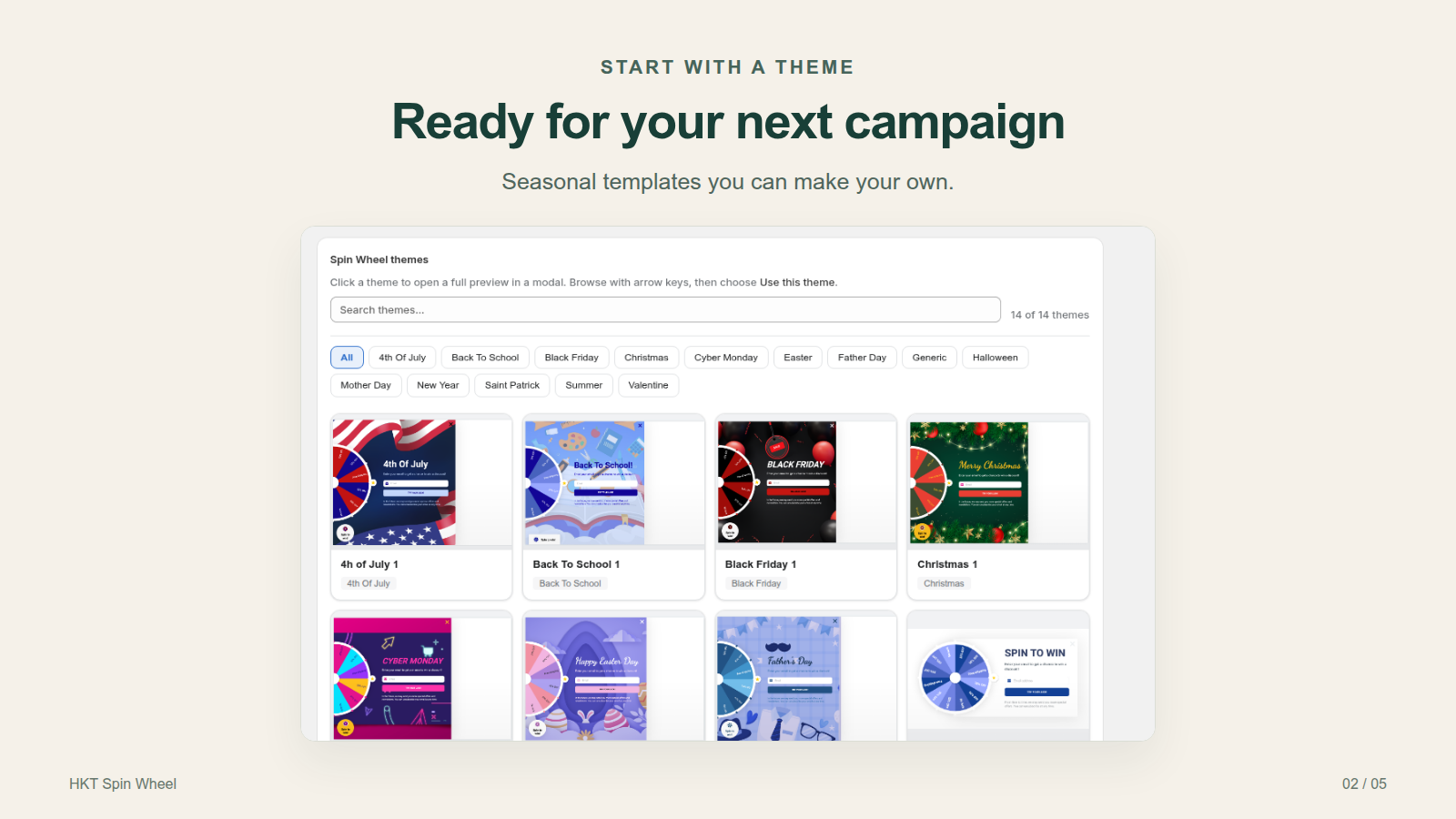
Every game type comes with ready-made themes, including seasonal designs for Black Friday, Cyber Monday, Halloween, Christmas, New Year and Valentine’s Day. Pick one that is close to your brand and give the campaign a name. New games start as drafts, so nothing appears on your store yet.
Step 3: Set up prizes that are real and affordable
Open Coupons in the game editor. Here you set the prize labels, the winning weight of each prize and the coupon behind it.
One rule matters more than any other: a prize label is only text. Writing “20% OFF” on a slice does not create a discount. Each winning prize needs a working coupon, either an existing Shopify discount code or the automatic unique coupons the app can create for you. Unique codes are worth using because one visitor’s code cannot be shared around coupon sites.
Tips for a prize mix that protects your margins:
- Use 6 to 8 slices. Fewer looks thin; more becomes hard to read on a phone.
- Put most of the winning weight on modest prizes you are happy to give often.
- Keep big prizes rare, but real. Visitors notice when a wheel never lands on them.
- Add a minimum order amount to higher-value prizes.
- Set an expiry and a one-use limit on the Shopify discount so the offer creates urgency.
Here is an example to adapt. It is only an illustration; set values that fit your own prices and margins.
| Prize | Condition | Winning weight |
|---|---|---|
| 10% off | Any order | 40 |
| Free shipping | Any order | 25 |
| 15% off | Orders over $50 | 20 |
| 20% off | Orders over $80 | 10 |
| Free gift | Orders over $100 | 5 |
Check each discount in Shopify for eligibility, expiry, usage limits and minimum purchase before you go live.
Step 4: Match the design to your brand and check mobile
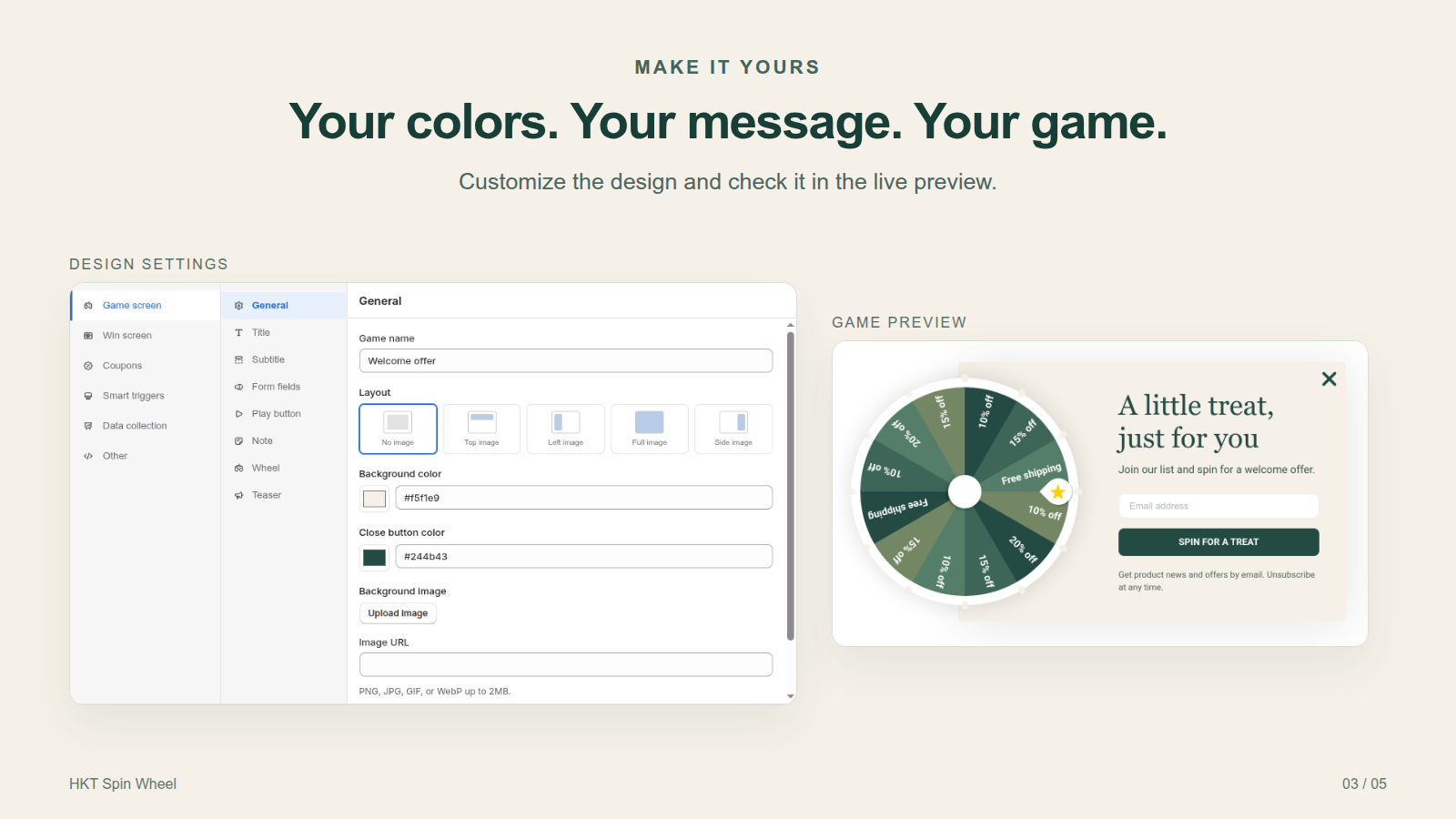
Use Game screen to change the title, form, button, colors and images, and Win screen for the message visitors see after they win. The preview updates as you edit, and you can switch between desktop and mobile views.
- Put the offer in the headline: “Spin to win up to 20% off” beats “Join our newsletter”.
- Ask only for what you need. Every extra field is one more reason to close the popup.
- Check the mobile preview carefully. Many shoppers browse on their phones.
- Customize the teaser, the small button that lets visitors reopen the game later.
This short recording shows the editor, triggers, data collection and preview:
Step 5: Choose when and where the popup appears
Open Smart triggers to control timing and targeting:
- Triggers: show the game after a delay, after the visitor scrolls part of the page, or when they move to leave (exit intent).
- Frequency: limit how often the same visitor sees the game.
- Pages and devices: show the game everywhere, or only on chosen pages or devices.
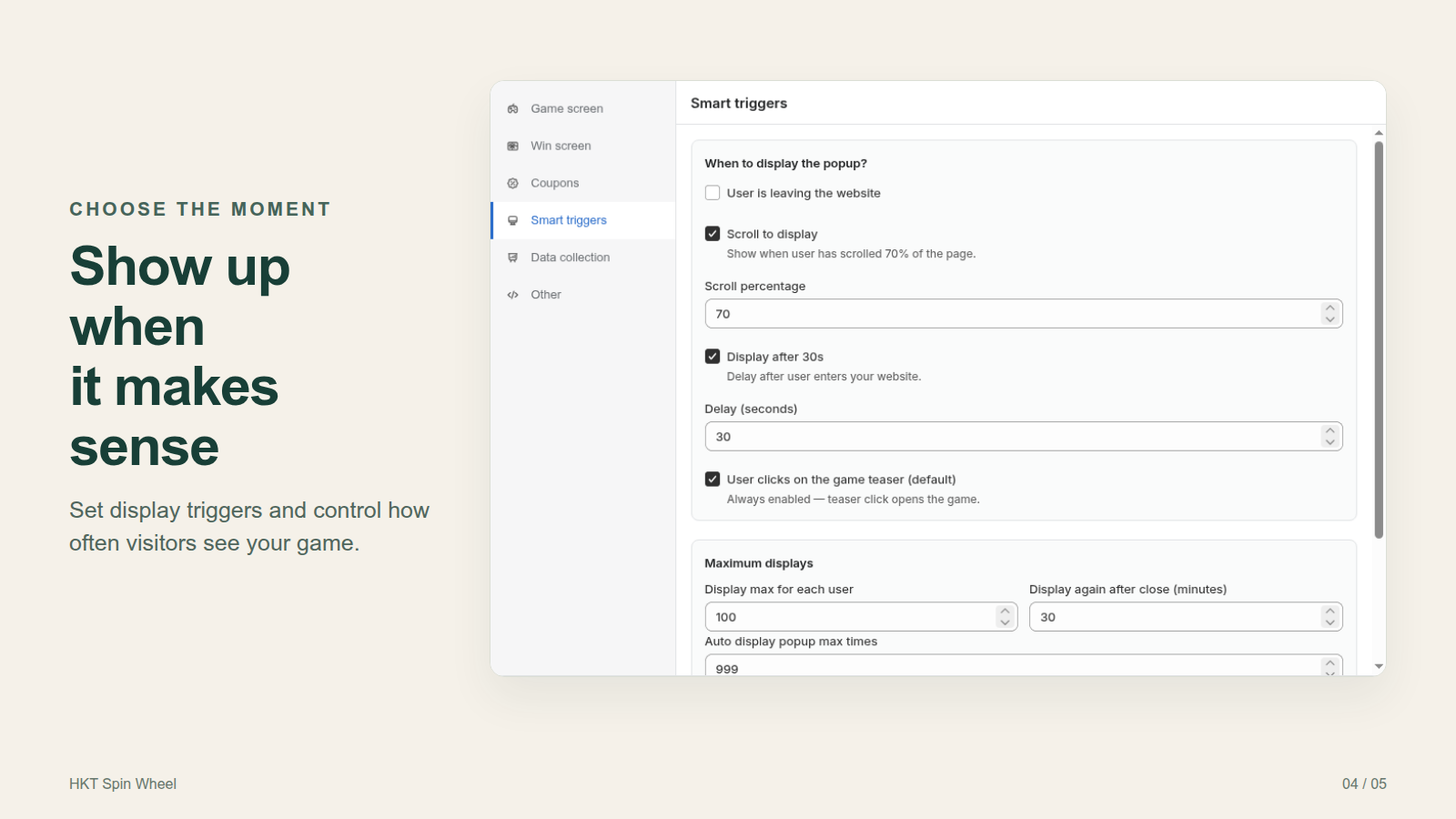
A sensible starting point: give visitors a moment before the game appears, for example 10 to 15 seconds or a partial scroll, keep exit intent as a backup, and do not show the game again to someone who closed it in the last few days. Adjust from there once you see results.
Step 6: Collect emails with clear permission
In Game screen → Form fields, review the marketing permission choices. Email and SMS permission are separate checkboxes, they start unchecked, and visitors can play without subscribing. The SMS choice appears only when you collect phone numbers. Adapt the wording to your store and language before publishing.
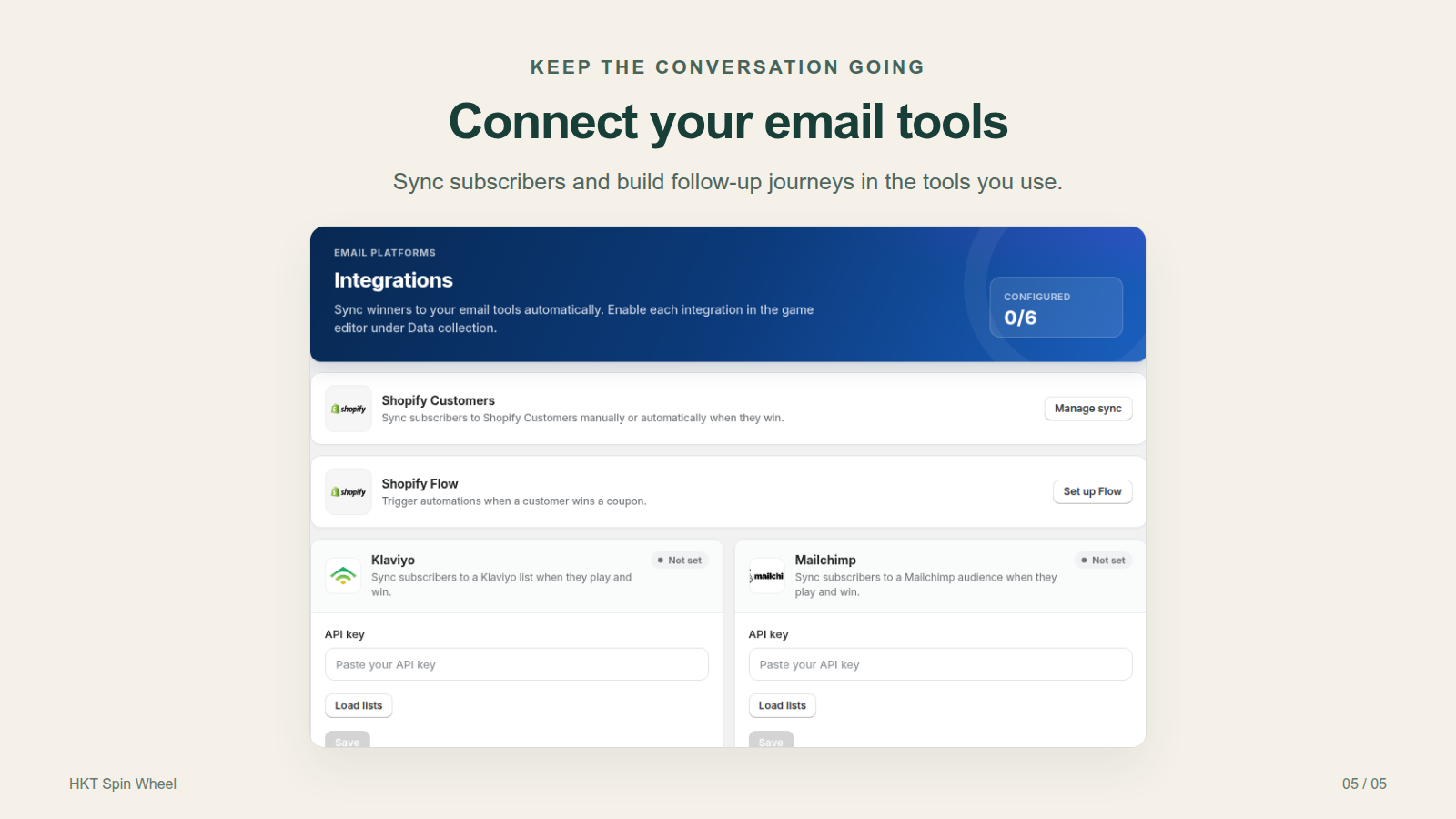
To send subscribers to your email platform, connect it under Integrations, then enable it for this game under Data collection. Connecting an account and enabling it for a game are two separate steps.
Step 7: Publish the game and turn on the app embed
- In the game editor, select Review & publish, check the changes and publish. Saving a draft alone does not change your live store.
- In Shopify, open Online Store → Themes → Customize for your published theme.
- Open App embeds, switch on HKT Spin Wheel and save the theme.
- Open your store in a private browser window on your phone and on a computer. Play the game, check the winning message and apply the coupon at checkout.
If the popup does not appear, check that the game is published, the app embed is on in the published theme, and your trigger and frequency settings. A visitor who already closed the game will not see it again until the frequency rule allows it, so always test in a fresh private window.
Step 8: Measure and improve
After a few days, open the app’s subscriber and campaign reports. Compare how many visitors saw the game with how many played and left an email, and check how many winning codes were used on orders in Shopify. Then change one thing at a time, such as the headline, the trigger timing or the prize mix, so you know what made the difference.
Common mistakes to avoid
- Showing the popup the instant the page loads, before visitors know what you sell.
- Prize labels without working discounts behind them.
- A wheel full of “No luck” slices. A small prize feels better than a loss.
- Forgetting the app embed, or turning it on in a theme that is not published.
- Never testing on a phone.
- Pre-checked marketing boxes or wording that does not match how you will use the email.
Frequently asked questions
Will a spin wheel popup slow down my store?
HKT Spin Wheel loads its storefront script from Shopify’s CDN through the app embed, and the full game only loads when your store has an active campaign. As with any app, measure your store speed before and after you enable it.
Are players subscribed to marketing automatically?
No. Playing the game and giving marketing permission are separate. Only visitors who tick the email or SMS permission box are recorded as opted in.
Which email platforms does it work with?
Klaviyo, Mailchimp, Omnisend, GetResponse and ActiveCampaign. On paid plans you can also start Shopify Flow workflows with the “Visitor won a coupon” trigger, send automatic reward emails and use webhooks.
Can I run different games for different occasions?
Yes. Many stores keep an evergreen welcome game and switch to a seasonal design for big sales. Our Black Friday popup ideas show how. See the App Store listing for what each plan includes.
How much does it cost?
There is a free plan with 2,000 popups a month, smart triggers including exit intent, automatic unique coupons and page targeting. Paid plans start at $9.99 a month, or $99 a year. Current prices are on the App Store listing.
Try it on your store
Start on the free plan and publish your first game when you are happy with the preview. Install HKT Spin Wheel for free, or explore the demo store first. For more detail on each screen, read the setup documentation and the FAQ, or compare options in our guide to the best spin wheel apps for Shopify.